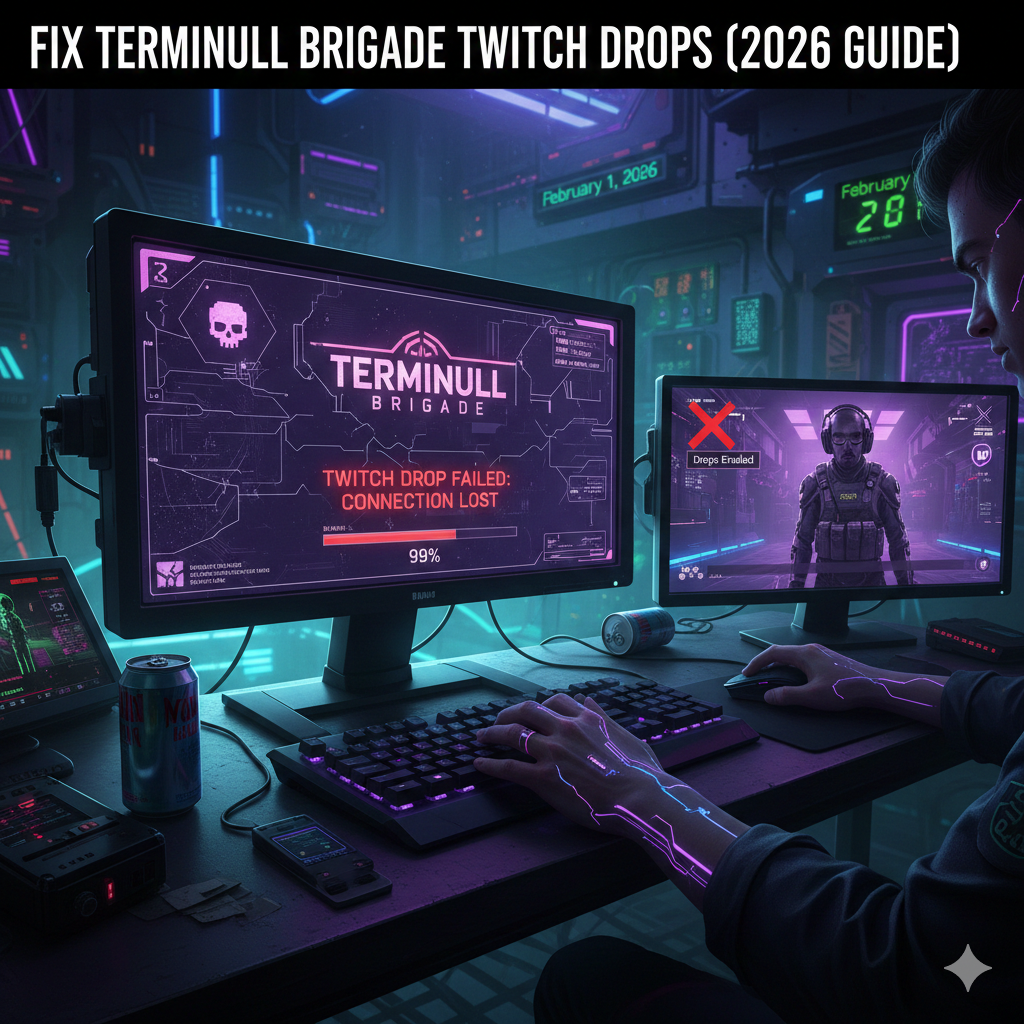
If you are a fan of the high-octane roguelike action in Terminull Brigade, there is nothing more frustrating than spending hours watching your favorite streamers only to find your Twitch Drops not working. Whether the progress bar is stuck at 99%, or you’ve claimed your loot but it’s nowhere to be found in-game, you aren’t alone.
In this guide, we will break down the common reasons why Terminull Brigade Twitch drops fail to trigger and provide a step-by-step troubleshooting path to ensure you get your RefactorData, RespawnCoins, and exclusive weapon skins.
Why Are My Terminull Brigade Twitch Drops Not Working?
There are several technical “hiccups” that can prevent your rewards from appearing. Most issues fall into three categories: linking errors, browser interference, or claim delays.
Common Symptoms:
- Stuck Progress: The percentage bar in your Twitch Inventory isn’t moving.
- “Connection Required”: Twitch says you need to link your account, even though you already have.
- Claimed but Missing: The item is “Claimed” on Twitch but hasn’t arrived in your in-game mailbox.
Step-by-Step Fixes for Terminull Brigade Drops
1. The “Nuclear” Relink (Most Effective)
Often, the “handshake” between Twitch and the Terminull Brigade servers expires or glitches. A simple refresh usually won’t work; you need to perform a clean relink.
- Step A: Go to your Twitch Settings > Connections and find “Terminull Brigade” or the developer’s portal under “Other Connections.” Click Disconnect.
- Step B: Log into the Official Terminull Brigade Account Portal.
- Step C: Unlink your Twitch account from there as well.
- Step D: Clear your browser cache and log back into both sites.
- Step E: Re-initiate the link starting from the official game website.
2. Check for “Muted Stream” Penalties
Twitch has become stricter with its “AFK” detection. If your stream is muted via the Twitch volume slider, the algorithm may stop tracking your progress.
- Solution: Keep the Twitch volume at least at 10%. If you need silence, mute the browser tab instead (Right-click the tab > Mute Site).
3. Disable Ad-Blockers and Extensions
Some aggressive ad-blockers or “Auto-Claim” extensions interfere with the JavaScript Twitch uses to track watch time.
- Fix: Disable uBlock Origin, AdBlock Plus, or any “Twitch Enhancer” extensions while trying to earn drops. Alternatively, use an Incognito/Private window where extensions are disabled by default.
4. Verify the “Drops Enabled” Tag
Not every streamer playing Terminull Brigade has drops active.
- Tip: Look for the “Drops Enabled” tag below the stream title. You should also see a call-out at the top of the chat sidebar confirming that you are earning progress toward a specific reward.
How to Claim Rewards In-Game (2026 Update)
Unlike some games where items appear instantly, Terminull Brigade often requires a manual “fetch” inside the game client.
- Claim on Twitch First: You must click “Claim Now” in your Twitch Drops Inventory.
- Wait for the Sync: It can take anywhere from 5 minutes to 24 hours for the server to process the claim.
- Check In-Game Mail: Navigate to your base or the main menu. Look for the Mail icon. Some rewards, like TerminullCoins or RefactorData, are sent directly to your inventory, while skins may require you to “Accept” the mail first.
- The DNS Flush (Advanced): If the game fails to “see” the server update, open your PC’s Command Prompt and type
ipconfig /flushdns, then restart the game.
Summary of Rewards
During the 2026 campaigns, players are typically eligible for the following:
| Item Type | Reward Name | Watch Time Required |
| Currency | 2000x TerminullCoin | 1 Hour |
| Consumable | 2x RespawnCoin | 2 Hours |
| Upgrade | RefactorData | 4 Hours |
| Cosmetic | Seasonal Weapon Skin | 6 Hours |
Final Troubleshooting Tips
- Only One Stream at a Time: You cannot earn progress by watching multiple Terminull Brigade streams simultaneously. Twitch will only track the “active” one.
- Mobile App Issues: If you are watching on the Twitch Mobile App (iOS/Android), ensure it is updated to the latest version. If progress is stuck, switch to a desktop browser.
- Check Participation: Ensure you have signed in with your Steam or LI Pass account correctly on the event page.
Leave a Reply